Google Tag Manager
Deploy and manage marketing tags centrally with automatic consent state synchronization.
Google Tag Manager (GTM) is Google's tag management system that lets you deploy and manage marketing tags, analytics scripts, and conversion pixels without modifying your codebase. Instead of hardcoding multiple scripts, you configure them through GTM's web interface.
c15t automatically injects the GTM script into your page and syncs consent state with GTM using Consent Mode v2. By default, c15t loads GTM regardless of consent because GTM manages its own internal consent state and only fires tags when appropriate consent is granted.
This prevents GTM-managed scripts from loading without proper consent while giving you centralized control over your marketing stack.
Info
Use GTM if your team manages many tags centrally in the GTM UI. Use gtag.js if you only need GA4/Google Ads directly in code. Don't run both for the same destination unless intentional, or you may duplicate events.
Implementation
Creating a Tag Manager Container
Info
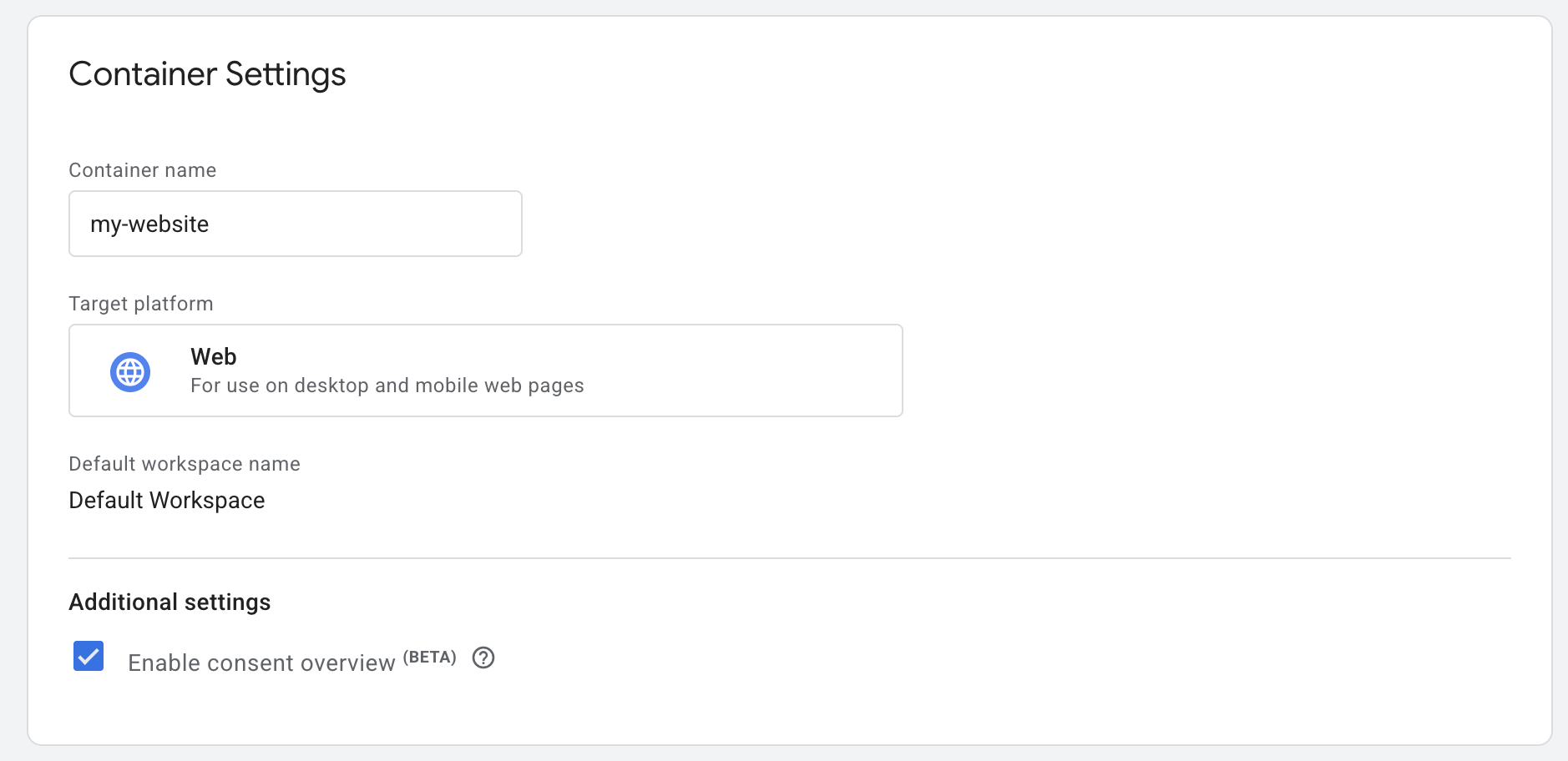
This step is optional if you already have a Tag Manager container. Ensure your container has consent overview enabled.
After signing into Google Tag Manager, you can create a new container. Continue to Google Tag Manager
- In Tag Manager, click Admin > Container Settings.
- Under Additional Settings, select "Enable consent overview".
Custom Update Trigger
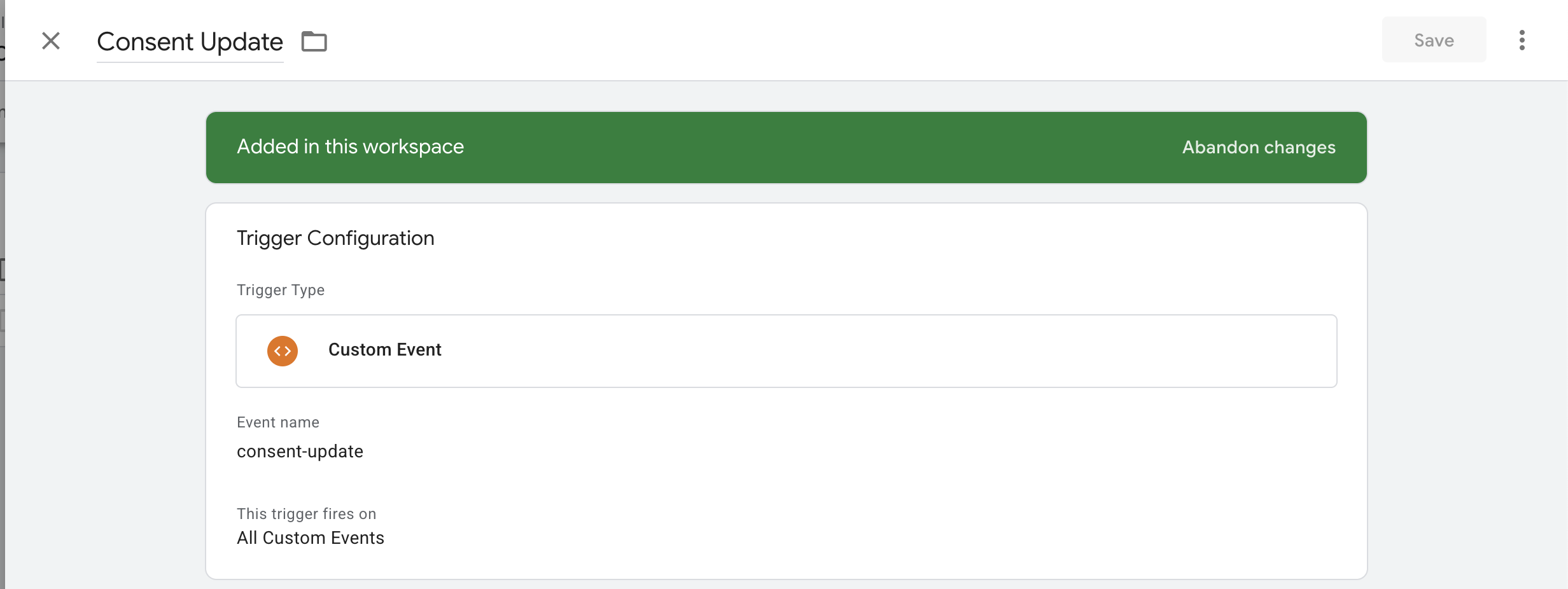
We now need to create a custom trigger in GTM to trigger the update event, this is the trigger that is fired when the consent state is updated, e.g. user gives consent to a specific purpose.
In GTM, you can create a new trigger by clicking on the "Triggers" tab and then clicking on "New".
For the event name, you can use the default "consent-update", this is customizable later so you can change it if you want.
Adding / Updating tags
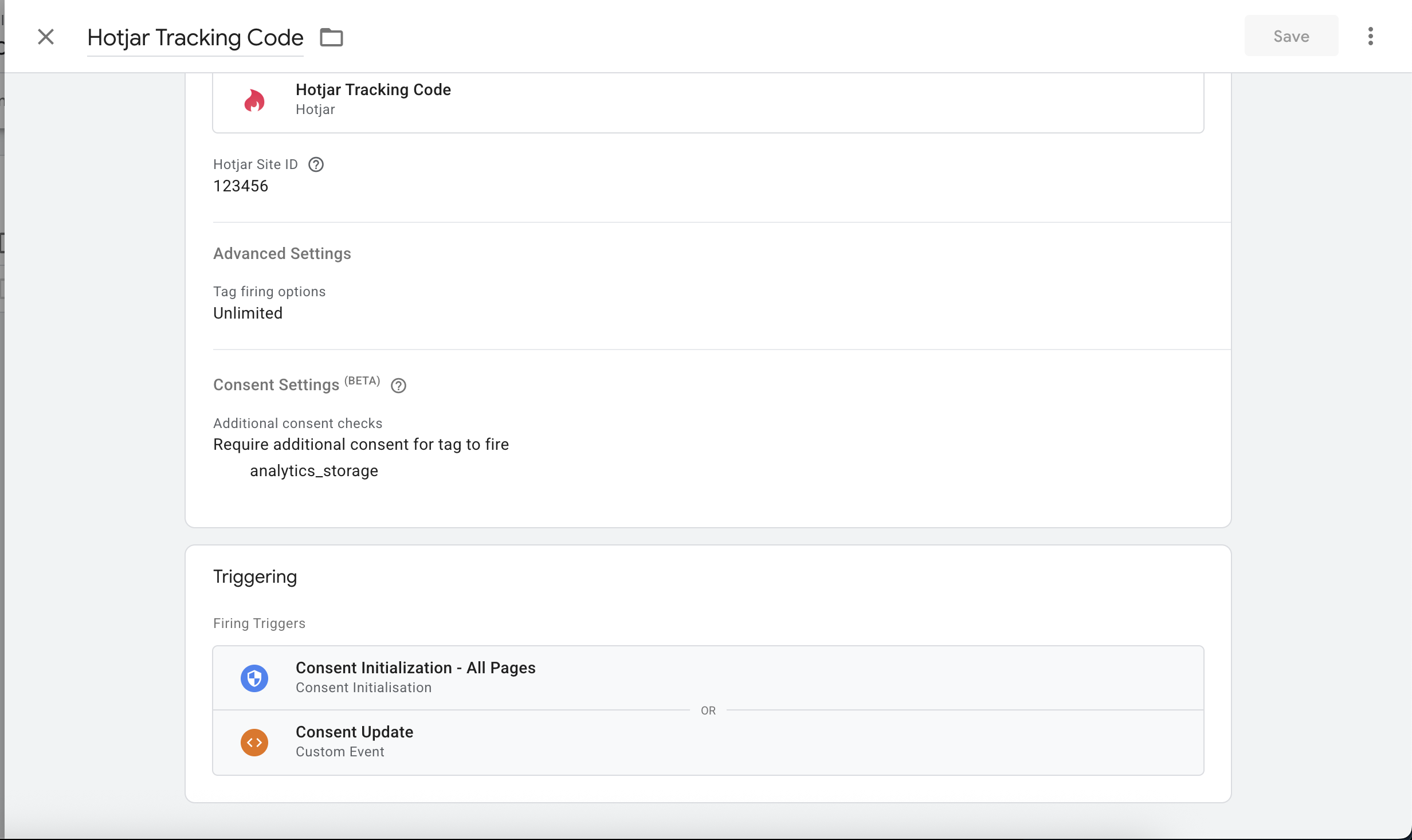
Now for your existing tags, you can add the "consent-update" trigger to the tag, this will fire the update event when the consent state is updated & it has the appropriate consent state.
Setting up c15t with Google Tag Manager
After creating your container, you can set up c15t with Google Tag Manager. All you need to do is copy and paste your container ID & begins with "GTM-".
Info
See the integration overview for how to pass scripts to your framework (JavaScript, React, or Next.js).
Post-setup verification checklist
- Open GTM Preview mode and confirm your container (
GTM-...) loads on page load. - Before giving consent, confirm non-essential tags do not fire in GTM Preview.
- Accept consent in the c15t banner/dialog and confirm a
consent-updateevent appears in the GTM event timeline. - Confirm measurement/marketing tags fire only after the matching consent is granted.
- Revoke consent and confirm a new
consent-updateevent appears and affected tags stop firing.
Types
GoogleTagManagerOptions
Script
Last modified on February 10, 2026